Tablet Usage Tips: How to Optimize Battery Life and Improve Work Efficiency
As tablets gradually become indispensable tools in our daily lives, more and more people rely on them to handle work, enjoy entertainment, and even engage in creative design. Whether reading an e-book at a café or editing documents during travel, tablets provide a convenient user experience. However, with the increasing functionality of tablets, the issue of battery life and the need to boost work efficiency have become key concerns. Especially during winter, I’ve missed important work opportunities several times due to the battery draining too quickly. Therefore, today I would like to share some practical tablet usage tips to help you maximize battery life while improving work efficiency.
1. Tips for Extending Battery Life
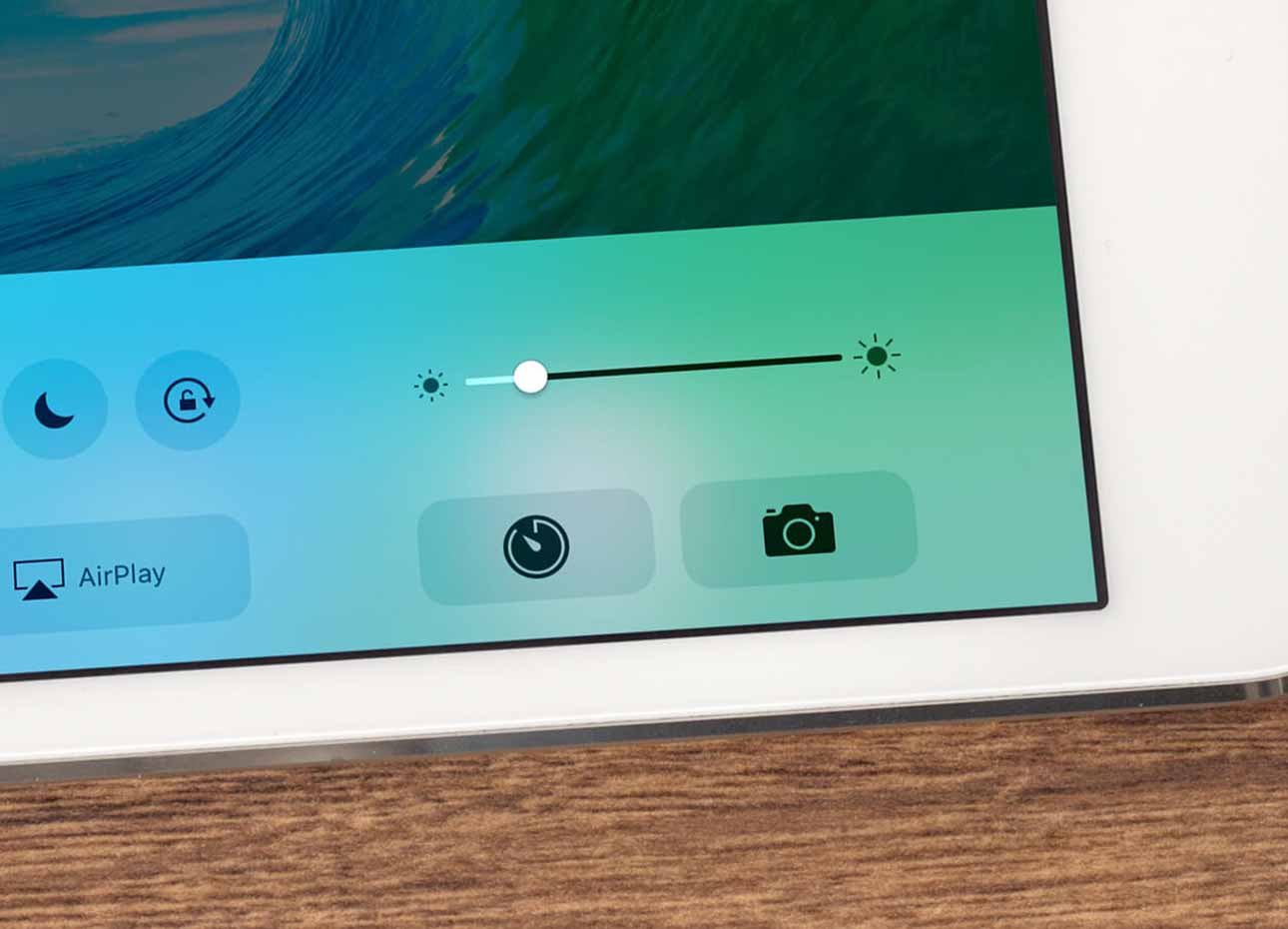
1. Adjust Screen Brightness
Whenever I pick up my tablet, I tend to increase the screen brightness for better clarity. This is especially true when I’m outside in bright sunlight and feel the screen is too dim. However, I later realized that, for most of the time, I don’t need such a high brightness, especially in indoor or dimly lit environments. Now, I always enable the “auto-brightness” feature, which allows the tablet to automatically adjust the brightness based on the surrounding light. Alternatively, you can manually adjust the brightness to a level that is comfortable for your eyes, avoiding unnecessary battery drain.
2. Close Unnecessary Background Apps
This is a habit I’ve developed over many years. When multiple apps are running in the background, they not only consume a lot of battery but can also slow down the device’s responsiveness. To keep my device running smoothly, I frequently check the apps running in the background and manually close the ones I no longer need. For instance, when I open the task manager and notice certain apps are constantly refreshing content, I immediately close them to prevent unnecessary battery consumption. Although this simple action may seem trivial, it significantly enhances efficiency and saves battery life.
3. Turn on Power Saving Mode
I’ve found that the power-saving mode on my tablet is a lifesaver in certain situations! When I don’t need high-performance tasks, such as browsing the web or checking emails, enabling power-saving mode can drastically extend usage time. While power-saving mode limits some high-power functions, such as reducing screen brightness and turning off background updates, it is more than sufficient for light daily use. I used to keep all apps and functions running until the battery was completely drained, which often led to running out of power unexpectedly. Now, whenever I go out, I always enable power-saving mode, so whether I’m scrolling through social media on the bus or checking documents during meetings, I can do so with peace of mind.
4. Reduce Background Sync Frequency
Automatic syncing of emails, app updates, and other features is convenient, but it also continuously drains battery life. When I first started using my tablet, I set all apps to sync automatically, which resulted in frequent updates whenever new emails or messages came in. As a result, the battery drained quickly. So, I began adjusting the sync settings, setting the frequency to once every hour or only syncing when I manually initiate it. This change significantly improved battery efficiency and reduced redundant background activity.
5. Turn off Wireless Features
Wireless features like Wi-Fi, Bluetooth, and mobile data consume a large amount of battery, especially when not in use. I’ve had experiences where I forgot to turn off Wi-Fi or Bluetooth even though my tablet wasn’t connected to any network, and as a result, the battery drained quickly. Over time, I developed the habit of turning these features off when I don’t need them. For example, if I’m going to be away from the tablet for an extended period, I’ll turn off both mobile data and Wi-Fi to ensure the battery lasts longer. This way, even when I’m on a business trip or traveling, I can keep my tablet charged for emergencies.
By applying these simple tips, not only has the battery life of my tablet been significantly extended, but my work efficiency has also improved. Especially when I need to use the tablet for long periods, optimizing battery settings and avoiding unnecessary features ensure the device continues to function smoothly when I need it most. While these tips may seem simple, they make a noticeable difference in daily usage. If you want to improve your tablet’s battery life and work efficiency, I recommend giving these methods a try. You’ll find that simple adjustments can provide a more lasting and productive experience.
2. Tips for Boosting Work Efficiency
1. Multitasking
Modern tablets have made significant improvements in multitasking, with the split-screen feature becoming a standard feature on many devices. For me, being able to operate multiple applications simultaneously has greatly boosted my work efficiency. For example, when I’m organizing documents, I can view related materials while keeping the browser open for research, and sometimes I even have two chat windows open to communicate with different people. This efficient multitasking approach has greatly improved my work pace. I no longer have to switch between apps constantly; I can keep all tasks running concurrently, saving a lot of time.
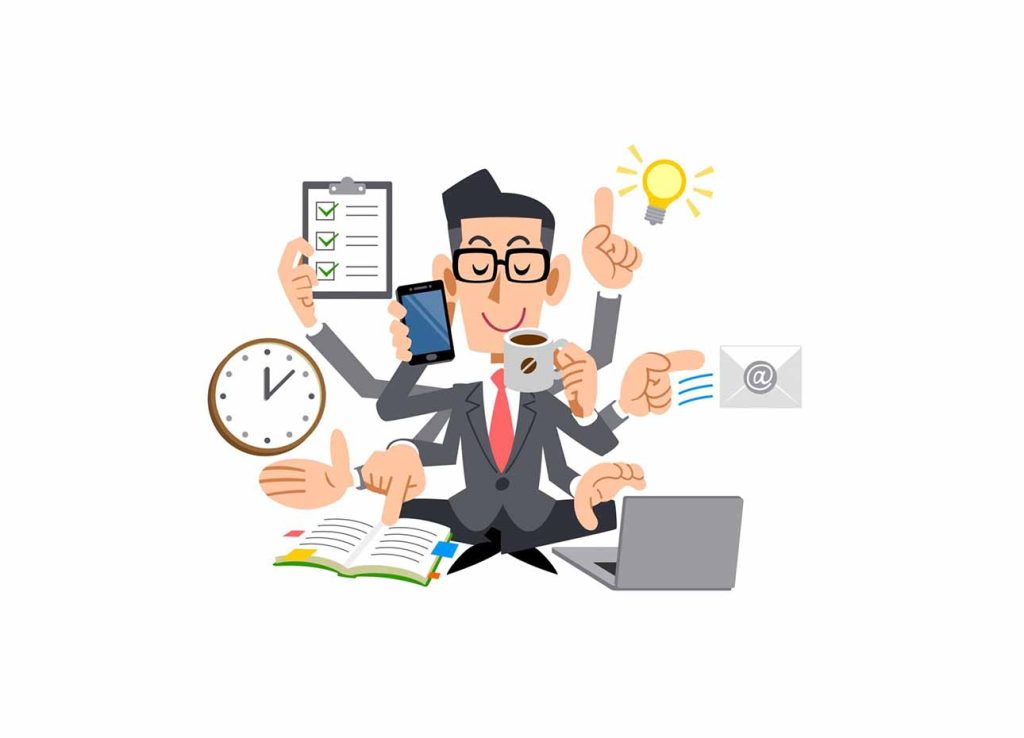
When using the split-screen function, I usually arrange the applications based on their urgency. For instance, when working on a document, I’ll keep the related materials or emails open on one side of the screen, making it easy to access them without frequently switching pages. With proper layout, I find I can complete tasks more efficiently and reduce interruptions.
2. Use of Shortcuts and Gestures
Mastering the shortcuts and gestures on your tablet is another powerful way to boost work efficiency. Many tablets support quick app switching, opening settings, and other gesture operations. While these shortcut operations may seem simple, they significantly reduce waiting time during daily use. For example, the “swipe to switch apps” feature allows me to quickly switch from one app to another without clicking any buttons.
One of my most-used shortcuts is the gesture to quickly switch apps, allowing me to avoid returning to the home screen every time I need to open a new app. For those who don’t prefer gestures, keyboard shortcuts can also be effective. Some of my frequently used shortcuts include quick screenshots and adjusting brightness, which make the operation smoother, eliminating the need to navigate through cumbersome menus, thus saving a lot of time.
3. Cloud Backup and Syncing
I never store important files solely on my tablet, especially since I often carry it around. Cloud backup and syncing have become an essential part of my workflow. Using cloud services like Google Drive, Dropbox, and iCloud not only allows me to back up files at any time but also enables seamless switching between different devices.
For example, after finishing a document on my tablet, I can immediately save it to the cloud and continue editing it on my phone or computer. This way, I never have to worry about losing files or encountering synchronization issues. Especially when traveling or working on the go, the file synchronization between my tablet and phone saves me a lot of time and eliminates the need for manual file transfers.
4. Using Productivity Tools
When using my tablet, choosing the right productivity tools has been a major help in improving my work efficiency. Many productivity tools are optimized for tablets, particularly office software. Applications like Microsoft Office, Google Docs, and Notion all provide dedicated apps for tablet users, with interfaces that are well adapted and support keyboard shortcuts. These tools are incredibly efficient, especially when dealing with documents, spreadsheets, and scheduling tasks.
I particularly enjoy using Notion on my tablet, as it allows me to easily create to-do lists, schedules, and even manage projects. Whether taking notes during meetings or organizing work tasks, this tool has greatly boosted my productivity. Moreover, its cloud-syncing feature ensures I can continue working anytime and anywhere, without being restricted by time or location.
5. Using External Devices
Although the tablet’s built-in touchscreen is very convenient, for tasks requiring prolonged input or precise operations, connecting an external keyboard and mouse can greatly enhance work efficiency. I often use a Bluetooth keyboard and mouse to connect to my tablet, especially when I need to input a large amount of text. The keyboard and mouse combination makes working feel like using a desktop computer.
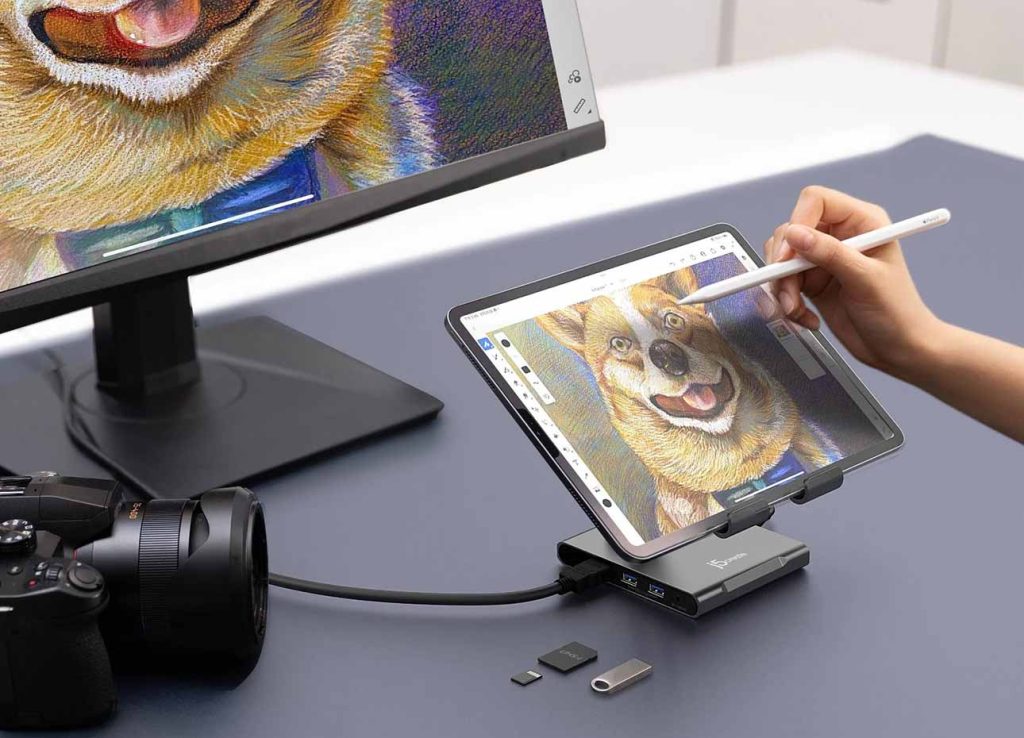
For example, when writing articles or handling complex spreadsheets, using an external keyboard is far more efficient than typing on a touchscreen. This is particularly true for long typing sessions, as the strain on my wrists is significantly reduced. By connecting these devices, the tablet becomes a convenient “workstation,” allowing me to complete tasks more efficiently.
6. Regularly Clean the Device
As more files and apps accumulate on the tablet, the system may become sluggish. I once accumulated a lot of files and apps on my tablet, which caused it to slow down and the battery to drain faster. Since then, I’ve developed the habit of regularly cleaning the device. Removing unnecessary files, apps, and cache can significantly improve the device’s performance, ensuring it always operates smoothly.
I’ve used several cleaning tools to quickly remove redundant files. After each cleaning, I noticed a noticeable boost in the device’s speed, and battery life was better preserved. This simple tip has helped me avoid performance issues and storage shortages, particularly when using the tablet for long periods.
By making simple adjustments and utilizing the tablet’s features effectively, you can significantly enhance its work efficiency and battery life. Whether it’s using multitasking, leveraging productivity tools, or enhancing your operation experience with external devices, mastering these tips can make your tablet much more intuitive and help you handle work challenges with ease. Regular device cleaning and proper battery use will also ensure that your tablet remains energized for prolonged use while maintaining peak performance. I hope these tips will help you make better use of your tablet, improve work efficiency, and avoid battery-related issues from affecting your work progress.